ZFusion Upgrade Guide | Predictive Response
ZFusion Upgrade Guide
This guide walks you through upgrading your existing ZFusion package to the latest version. Upgrading ensures you have access to new features, improved security, updated Zoom permissions, and the best possible performance inside Salesforce.
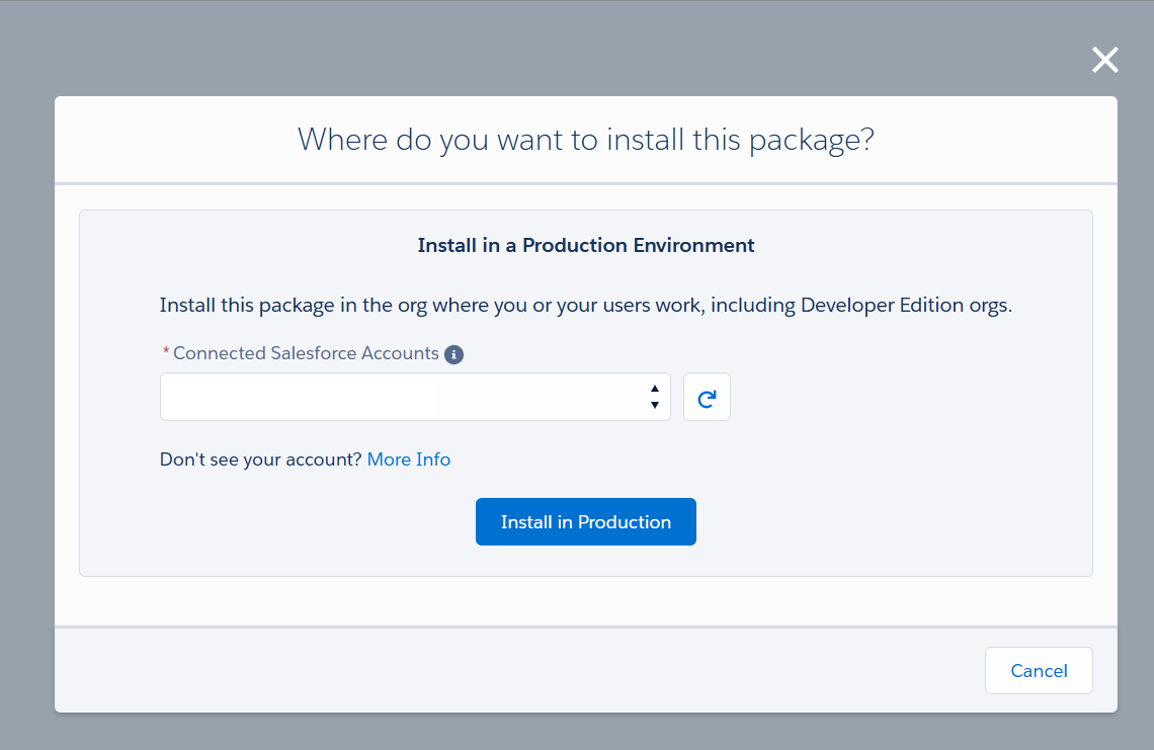
From the AppExchange listing, click on the Get it Now button. You will need to make sure that you are connected to the correct Salesforce account and then click the Install in Production button:
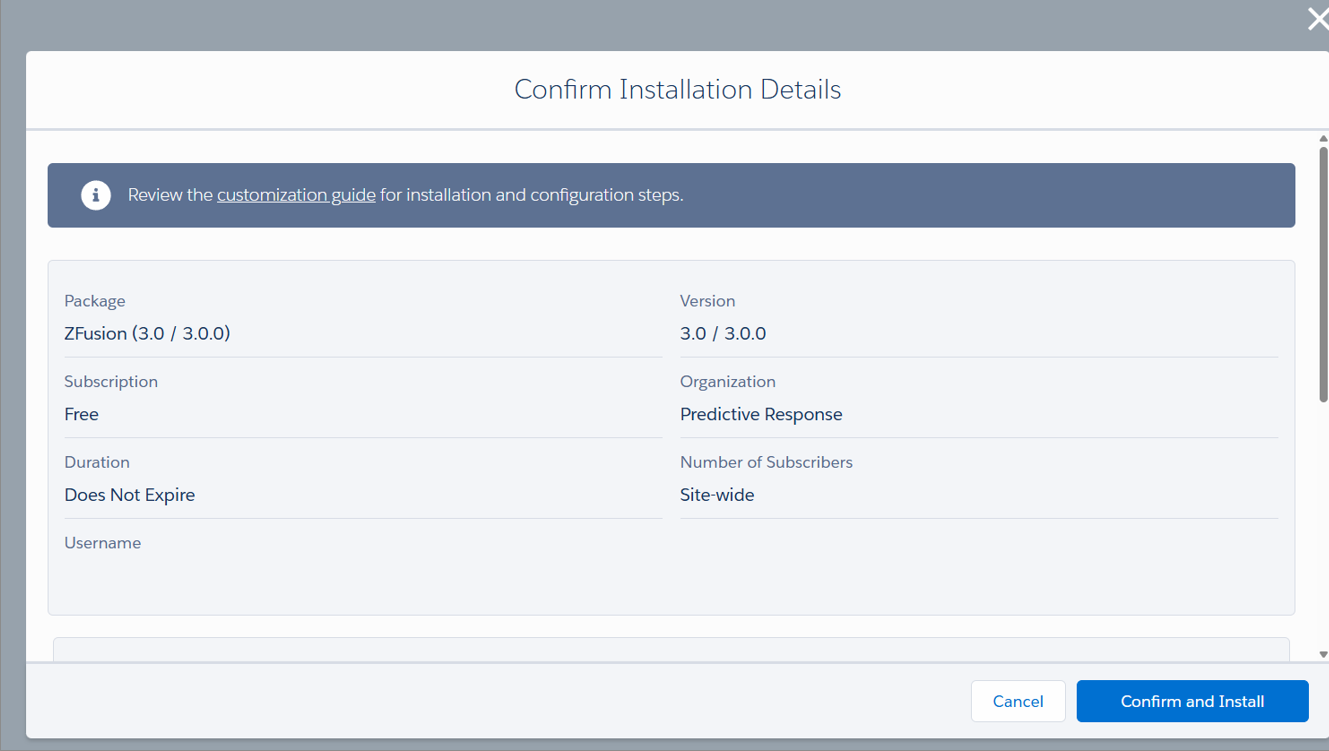
Click on the Confirm and Install button after confirming your details:
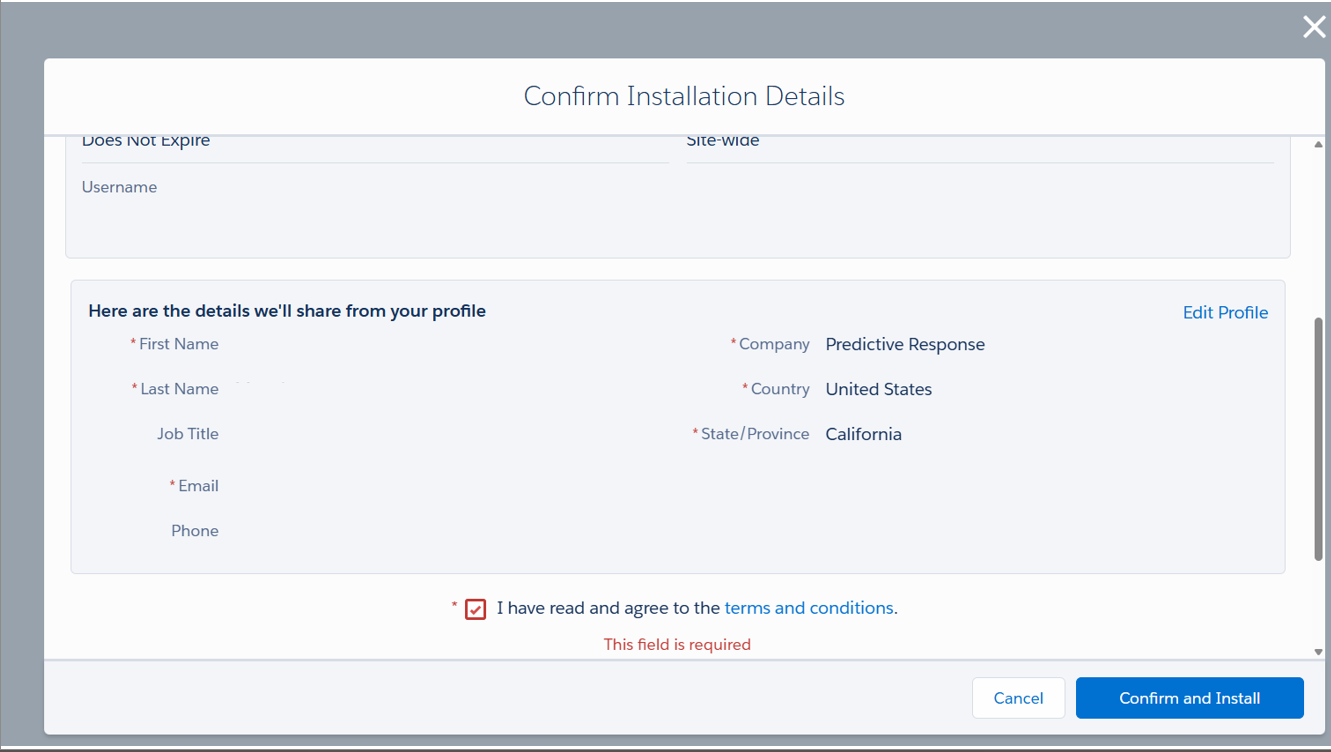
Check the terms and conditions acknowledgment and click Confirm and Install:
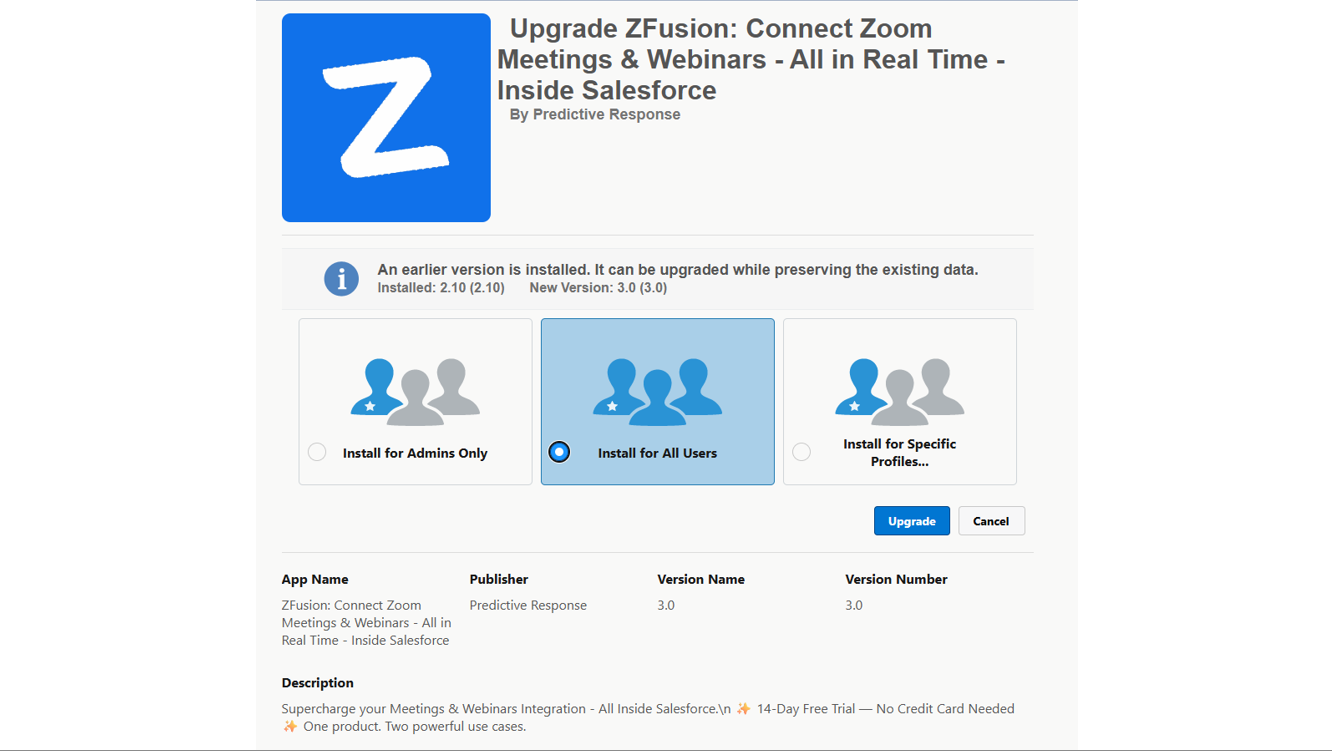
Select Install for All Users and also make note of the version numbers of the package. You want to confirm that you are upgrading the correct version:
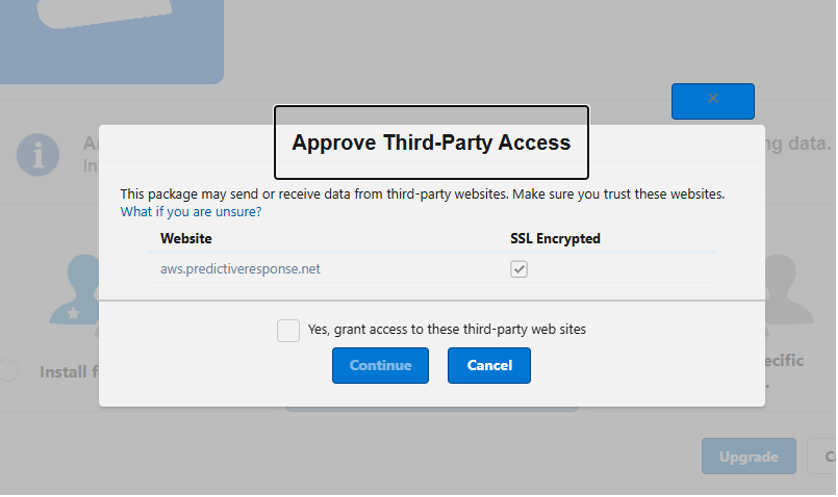
Approve the third party access:
This will begin your installation. Once the installation has finished, you will receive an automated email notification from Salesforce. You can then navigate to your Installed Packages under Settings to confirm that the ZFusion package has been upgraded.
Configuration:
With the latest version, there are a few new features that will require you to add some related lists and fields to your Campaign object.
You will want to include Zoom Meeting Draft, Zoom Webinar Draft, and Zoom AI Insights to your related lists.
For more information on the newest features please take a look at our Using ZFusion – Full Guide article.
 (0)
(0) (0)
(0)