
ZFusion allows you to send an email directly to the members of any Salesforce Campaign. This is useful when you need to quickly reach everyone associated with a specific Campaign without leaving Salesforce.
Note:
This function is part of ZFusion, and it does not use the Predictive Response Email Editor.
How to Send an Email from a Campaign
- Navigate to your Campaign
- Go to the Campaigns tab in Salesforce.
- Select the Campaign you want to email from (for example, Ice Cream Lovers Campaign).
- Go to the Campaigns tab in Salesforce.
- Open the Campaign Members list
- Inside your Campaign, click on the Campaign Members related list to see all Leads and Contacts associated with the Campaign.
- Inside your Campaign, click on the Campaign Members related list to see all Leads and Contacts associated with the Campaign.
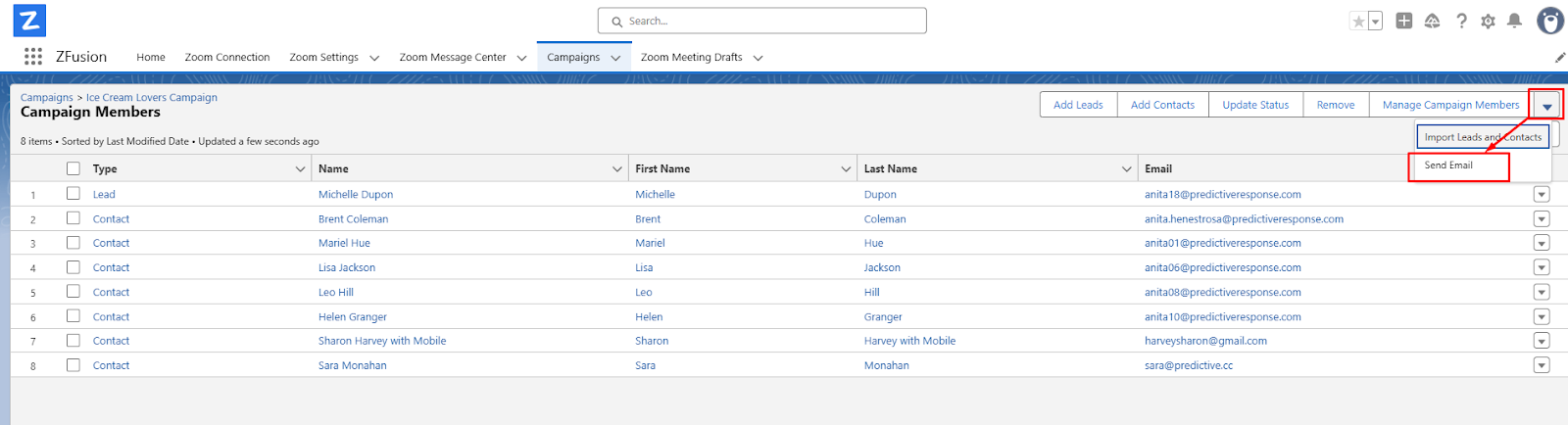
- Access the Send Email option
- On the top right corner of the Campaign Members section, click the down arrow ▾ button next to Manage Campaign Members.
- From the dropdown, select Send Email.
- On the top right corner of the Campaign Members section, click the down arrow ▾ button next to Manage Campaign Members.
- Compose and Send the Email
- The ZFusion email interface will open.
- Enter your Subject, Message, and choose any additional settings available.
- The ZFusion email interface will open.
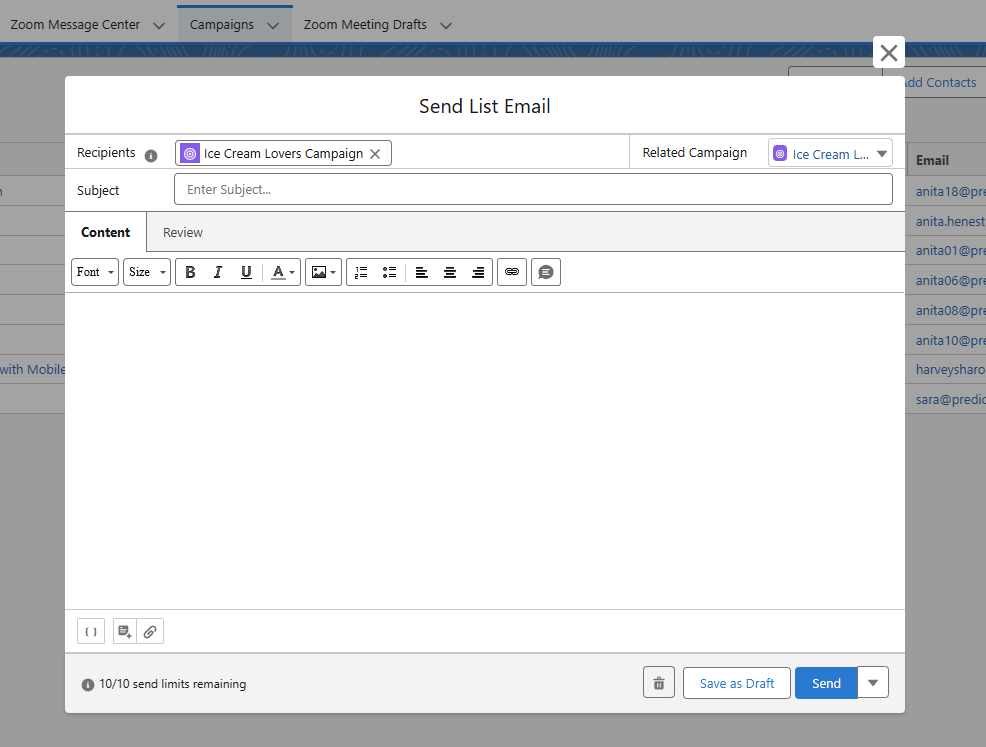
- When ready, click Send to deliver the message to all Campaign Members.
Important Notes
- The Send Email option is only available if ZFusion 3.0 is installed and configured in your Salesforce environment.
- This feature sends through Salesforce service, not Predictive Response.
- Emails are sent to all active Campaign Members with valid email addresses.
- Activity and status tracking can be viewed in the related Campaign record after sending.